Why the Kindle Desktop App Still Matters for Readers and Creators in 2026
It’s 2026, and our digital lives are busier than ever. Our computers and phones buzz with emails, social media, and endless news. This constant stream of messages can make it really hard to focus on just one thing, like reading a good book.

Many of us feel overwhelmed by this "digital overload," wishing for a quiet space to truly dive into a story or learn something new. It’s tough to get deep into a book when a thousand other things are just a click away.
But what if you could have a dedicated reading spot right on your computer? This is exactly what the kindle desktop app offers. It turns your busy screen into a calm library. E-books are more popular than ever. For example, about 31% of US adults read an e-book in the past year, showing how common digital reading has become E-Book Statistics (2026): 45+ Data Points on Market Size. Also, in Europe, more people bought e-books in 2025 compared to previous years More people bought e-books and audio books in 2025. The Kindle desktop app gives you a focused way to enjoy these digital reads. It’s a powerful tool not just for everyday readers, but also for authors and brands who want to share their work.
In this guide, you will learn everything you need to know about the kindle desktop app. We will show you how simple it is to set up on your computer and how to use its best features. You’ll find out smart ways to read more, be more productive, and use all the tools it offers to make your reading better. This includes tips on how to find new books, like exploring options to unlock Kindle Unlimited free books.
For creators and brands, this app is also very important. It lets you share your e-books directly with a large audience through Amazon’s huge online bookstore. We’ll explore how using e-books and the desktop app can help you connect with people, get your stories out there, and grow your brand in 2026. If you want to keep up with new ideas, community projects, and ways to participate, we invite you to:
Join The Newsletter
The Kindle desktop app is a free computer program that brings your entire Amazon Kindle library to your Windows PC or Mac. Think of it as your own digital bookshelf, but right on your big computer screen. It’s built to give you a clear, focused space to read e-books without all the other distractions that usually pop up on your computer.
This app is for everyone who loves to read, from someone quickly going through a fun story to a student deeply studying a textbook. It lets you buy e-books from Amazon’s huge online bookstore and read them whenever you want. For example, if you want to read a classic like "Interview with a Vampire book," you can get it from the store and start reading right away in the app.
What Kind of Computers Can Use It?
The kindle desktop app works on most modern computers. If you have a Windows computer, it needs to be Windows 8, 8.1, 10, or 11. For Mac users, your computer should run macOS 10.14 or newer Install or Update the Kindle For PC on Your Computer. There’s a newer version of the app for Mac that works best with macOS 12 (Monterey) and later, offering better features for managing your books Setting up your new Kindle for Mac. This means you can enjoy your digital reads on the computer you already own.
More Than Just a Web Page
It’s important to know that the kindle desktop app is different from reading Kindle books on your phone, a special Kindle e-reader device, or even through your web browser. While you can read books online at read.amazon.com, the desktop app is a standalone program you install. This makes it more powerful. It can do things like keep your books ready even when you don’t have internet access. This is great for long study sessions or if your internet is spotty. It also offers a smoother reading experience than a web page, and it often has more tools built in.
Key Ways You Can Use the Kindle Desktop App
The kindle desktop app is perfect for different kinds of readers:
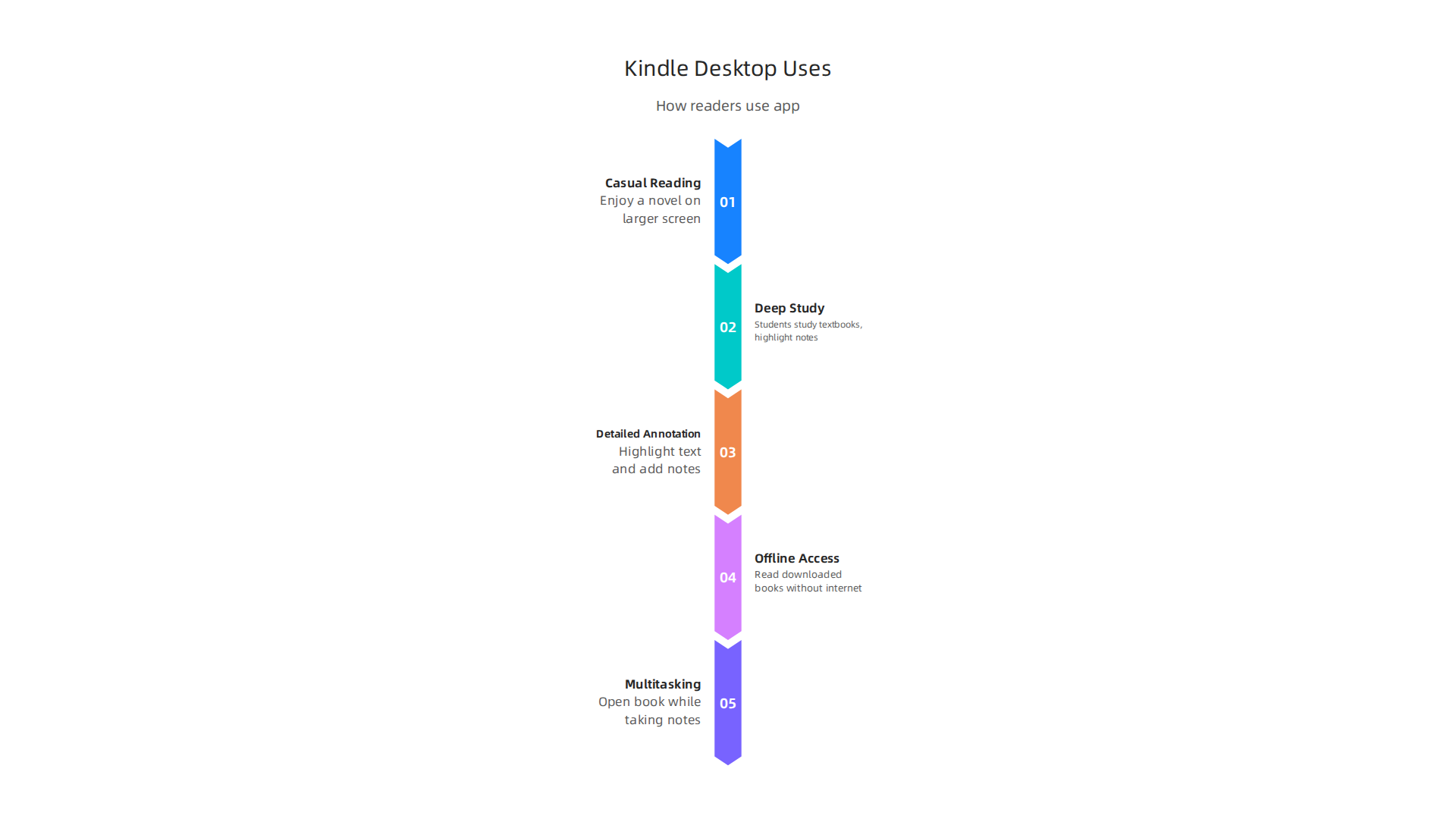
- Casual Reading: Simply opening up a novel and enjoying the story on a bigger screen than a phone.
- Deep Study and Learning: Students can use it to read textbooks, highlight important parts, and take lots of notes.

It’s much easier to do this on a computer with a keyboard than on a small screen. This can really help you focus and remember what you’ve learned, much like using a book journal for focus and memory.
- Detailed Annotation: If you love to mark up your books, this app lets you highlight text in different colors, add sticky notes, and even look up words easily. These notes sync across your devices, so you can pick up where you left off anywhere.
- Offline Access: Once you download your books to the app, you don’t need an internet connection to read them. This is super handy for travel or when you just want to disconnect from the web.
- Multitasking (the good kind): You can have your e-book open on one part of your screen while taking notes in another program or looking up extra information. This makes research and learning much faster.
In 2026, many readers still prefer traditional print books, but a large number, about 31% of US adults, also read e-books Americans still opt for print books over digital or audio …. The Kindle desktop app gives those e-book readers a strong tool for a better reading experience.
Getting the kindle desktop app onto your computer means you’re ready to make reading easier and more enjoyable. Let’s walk through how to set it up, sign in, and start reading your favorite stories quickly.
How to Install the Kindle Desktop App
First things first, make sure your computer is ready. The app works on Windows 8, 8.1, 10, or 11 computers. If you have a Mac, it needs to be macOS 10.14 or newer. Many sources, including TechRadar, confirm the app’s wide compatibility across these operating systems, making it accessible for most users in 2026 Kindle for PC review and where to download.
Here’s a simple checklist to get started:
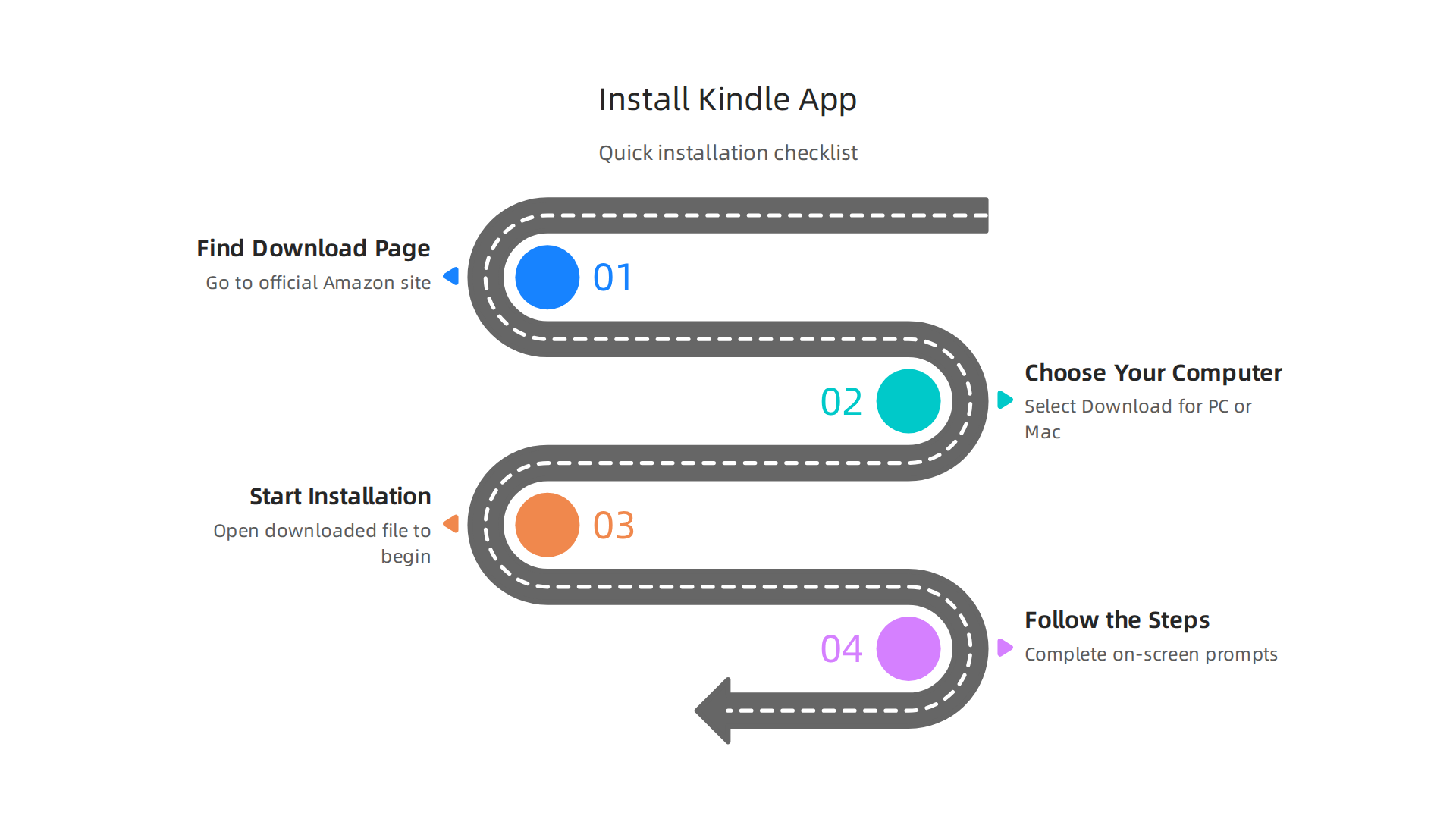
- Find the Download Page: Go to the official Amazon website and look for the "Download Kindle Apps" section.
- Choose Your Computer: Select the option to "Download for PC & Mac." The file will start downloading to your computer.
- Start the Installation: Once the download is finished, find the downloaded file (it’s usually in your "Downloads" folder). Double-click on it to begin installing.
- Follow the Steps: Your computer will guide you through the installation process with simple on-screen instructions. Just click "Next" or "Install" when asked. Amazon also provides a helpful guide for Setup and Registration if you need more details.
Signing In and Syncing Your Books
After the app is installed, you need to sign in:
- Open the App: Find the Kindle app icon on your desktop or in your applications folder and open it.
- Enter Amazon Details: You’ll be asked to sign in with your Amazon account email and password. This is the same account you use to buy books on Amazon.
- Let It Sync: Once you’re signed in, the app will automatically connect to your Amazon library. This means all the books you’ve bought will show up in your app. It might take a moment for all your books to appear, especially if you have many. The app is designed to sync your reading progress across different devices, so you can pick up exactly where you left off.
Getting Your First Book
Now that you’re signed in, it’s time to read!
- Browse Your Library: Look through the books that have appeared in your app. These are your already-owned books.
- Download a Book: To read a book offline, simply click on its cover in your library. The app will download it to your computer. A quick tip: Amazon provides instructions on how to Download Books to Your Kindle App if you’re having trouble.
- Find New Reads: If you want new books, you can use the app to visit the Kindle online bookstore. You can find all sorts of books there, from bestsellers to free reads. You might even find guides on how to unlock Kindle Unlimited free books and discover truly free reads or tips to find cheap books online on top platforms for smart buying.
Troubleshooting Common First-Run Problems
Sometimes, things don’t go perfectly the first time. Here are some quick fixes for common issues:
- Can’t Sign In? Double-check your Amazon email and password. Make sure you have an active internet connection. If you’ve forgotten your password, you can usually reset it on the Amazon website.
- Books Not Appearing? Make sure you’re signed into the correct Amazon account. Try clicking the "Sync" button within the app (it often looks like two arrows forming a circle). Sometimes, just restarting the app can help.
- App Won’t Open or Shuts Down? For Windows 10 users, there’s a specific newer version of the Kindle app from the Microsoft Store that might require certain computer features, like TPM, to be active. If you face this, it might be an issue with a specific app version, as some updates have changed support for older Windows versions The New Microsoft Kindle App Is Here. Check if your computer meets these technical requirements or try downloading the app directly from Amazon’s site instead of the Microsoft Store.
- Internet Connection Problems: While the app works offline once books are downloaded, you need an internet connection to sign in, download new books, or sync your progress.
Once you have the kindle desktop app running smoothly, it opens up a world of reading right on your computer screen. It’s a small step that can lead to many hours of great stories and learning. Ready to start your new reading adventure? We encourage you to Join An Experiment and dive into new experiences, turning curiosity into action.
Once you have the kindle desktop app running smoothly, it opens up a world of reading right on your computer screen. It’s a small step that can lead to many hours of great stories and learning. Beyond just opening a book, the app comes with many useful features that change how you read.
Reading Features That Change How You Consume Books on Desktop
The Kindle desktop app is more than just a place to store your books. It’s designed to make reading on your computer feel good and help you understand what you’re reading better. Let’s look at some of these helpful features.
Customizing Your Reading View
When you open a book in the kindle desktop app, you’ll find many ways to make it fit your eyes and mood:
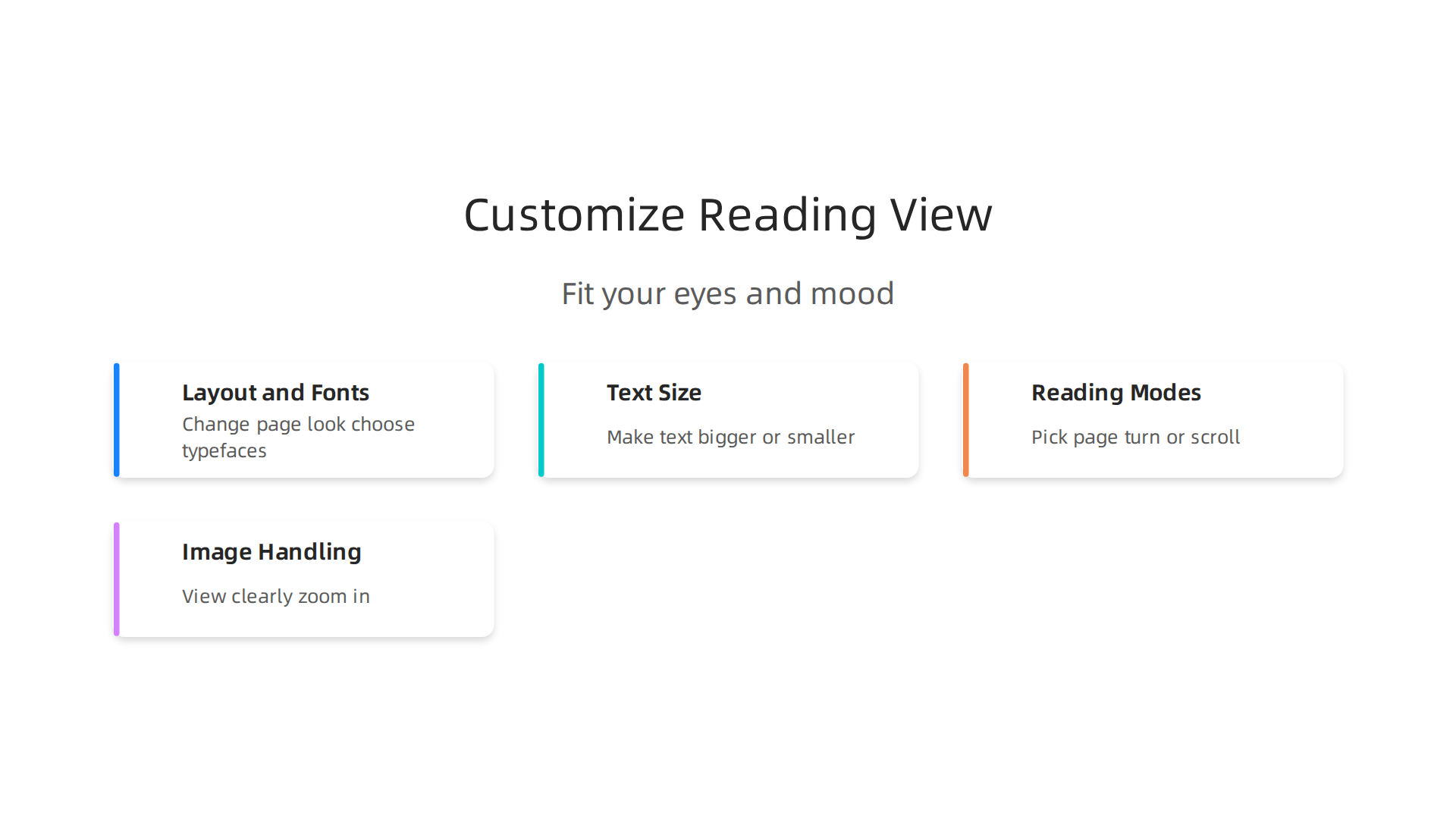
- Layout and Fonts: You can change how the page looks. Choose different fonts, just like picking a typeface for a document. You can also adjust the margins to make the text wider or narrower.
- Text Size: One of the best features is being able to make the text bigger or smaller. This is super helpful if your eyes get tired or if you just prefer a larger font size.
- Reading Modes: Do you like turning pages like a real book, or do you prefer to scroll down like a website? The app lets you pick. You can also change the background color from white to sepia or black, which can be easier on your eyes, especially at night.
- Image Handling: If your book has pictures, the kindle desktop app lets you view them clearly. You can often zoom in on images, like maps or illustrations, to see all the small details. This is especially good for books with lots of visuals, like a graphic novel or a book about architecture.
Boosting Your Understanding with Annotation Tools
One of the biggest helpers in the Kindle desktop app is its set of tools for taking notes and marking important parts.

These tools are much like using a highlighter and pen in a paper book, but with extra benefits.
- Highlighting: You can highlight sentences or paragraphs in different colors. This is great for marking important ideas or quotes.
- Notes and Annotations: You can also add notes to your highlights or to any part of the text. This is a good way to jot down your thoughts, questions, or summaries as you read. Studies have shown that using digital annotation tools can really help students understand and remember what they read STUDENTS’ EXPERIENCES IN USING DIGITAL ANNOTATION TOOLS TO ENHANCE READING COMPREHENSION.
- Export Options: A cool thing about digital notes is that you can often export them. This means you can save all your highlights and notes as a separate file, which is perfect for studying or writing essays. It can even help improve your learning from digital texts Content and quantity of highlights and annotations predict learning. This makes it easy to go back over what you learned later. For those who love to reflect on their reading journey, knowing how to use these tools can turn casual reading into a deeper experience. Consider exploring how to unlock deeper reading a book journal for focus and memory to make the most of these features.
These features make the kindle desktop app a powerful tool for any reader, whether you’re reading a light novel or a complex textbook. It truly helps you consume books in a more active and personal way.
Ready for more tips on how to improve your reading and writing, or how to connect with other book lovers? Stay updated with the latest in digital reading and other exciting projects.
Using the kindle desktop app isn’t just about reading; it’s also a smart way to study, take helpful notes, and even boost your creative ideas. With the tools we just talked about, you can turn passive reading into active learning and creative work.
Workflows for Better Study and Notes
Imagine you’re reading a textbook or a complex story like Interview with a Vampire. The kindle desktop app helps you dig deeper.
- Smart Highlighting: Don’t just highlight everything. Think about why you’re highlighting. Is it a main idea, a detail you need to remember, or a confusing part? Using different colors for different types of information can make your notes much clearer. Studies show that how well you annotate can make a big difference in academic reading How the Quality of Annotation Influences Academic Reading.
- Detailed Notes: When you add a note, don’t just write "important." Try to summarize the idea in your own words or think of a question it brings up. This helps your brain understand and keep the information better. You can review these notes later, almost like having a study guide already made for you.
- Exporting Your Thoughts: One of the best parts about digital notes is taking them with you. Many readers find it helpful to export their highlights and notes. You can often save them as a file to your computer. This is super handy for writing essays, preparing for tests, or just gathering thoughts for a project. Instead of flipping through a paper book, all your key ideas are in one place. You can even bring them into other note-taking apps you use.
Boosting Your Productivity with Kindle
The kindle desktop app can also help you read smarter and get more done, especially if you get distracted easily.
- Focused Reading Times: Just like you might use a timer for homework, you can set aside special times to read using the kindle desktop app. Turn off other apps, close extra tabs, and really focus on your book. This can be like a "reading sprint." Some people like to use methods like the Pomodoro Technique, where you read for 25 minutes and then take a short break. This helps keep your mind fresh.
- Turn Highlights into Action: Your notes aren’t just for looking back. They can be for doing things.
- Did you highlight a good idea for a blog post? Turn it into an outline.
- Find a quote you love? Use it as inspiration for a creative writing piece.
- Reading a book about new habits? Take your highlighted tips and plan how to try them in real life.
This kind of active engagement makes your reading much more valuable than just scrolling through an online bookstore.
Using the kindle desktop app as a tool for study and creativity helps you move beyond just reading words on a screen. It helps you interact with what you read in a meaningful way, making every book a chance to learn and grow. If you’re looking for new ways to get things done and make the most of your reading, consider exploring tools that can help with your daily tasks and goals, such as finding the best task management apps for 2026 for focus and productivity.
Ready to try new ways to learn and create from your reading? It’s all about turning your ideas into real steps.
Join An Experiment
Using the kindle desktop app as a tool for study and creativity helps you move beyond just reading words on a screen. It helps you interact with what you read in a meaningful way, making every book a chance to learn and grow. If you’re looking for new ways to get things done and make the most of your reading, consider exploring tools that can help with your daily tasks and goals, such as finding the best task management apps for 2026 for focus and productivity.
Ready to try new ways to learn and create from your reading? It’s all about turning your ideas into real steps.
Join An Experiment
Sync, Accessibility, and Cross-Device Continuity
Making the most of your reading means not losing your place or your notes. The kindle desktop app helps with this by keeping everything in sync. This means your books, your highlights, and your notes stay updated across all your devices.
Always Pick Up Where You Left Off
The key to this smooth experience is something called Whispersync. This cool feature lets you switch between your Kindle e-reader, tablet, phone, or the kindle desktop app, and always start reading right where you stopped. No need to remember page numbers or chapter names. Whispersync keeps track of your last read page and all your notes and highlights too Update Your Whispersync for Kindle Settings. So, if you’re reading a thrilling story like Interview with a Vampire on your tablet during your commute, you can open the kindle desktop app when you get home and continue reading without missing a beat.
Whispersync also works with audiobooks, a feature once known as Whispersync for Voice. This lets you switch from reading to listening and back again, keeping your spot no matter the format Learn about Read & Listen – Audible Help. It’s a handy way to enjoy your books, whether you’re using your eyes or your ears.
Reading for Everyone: Accessibility Features
The kindle desktop app is also built with many features to help everyone read comfortably. Amazon has worked hard to make sure their apps are usable for people with different needs Kindle accessibility improvements continue.
Here are some helpful accessibility tools you’ll find:
- Screen Readers: The app works with popular screen readers like NVDA (NonVisual Desktop Access) and JAWS on Windows computers. This lets people who are visually impaired listen to their books being read aloud Kindle for PC with Accessibility Plugin. They can navigate the app, find books, and even add notes using these tools.
- Font and Display Adjustments: You can change the font size, line spacing, and even choose special fonts like OpenDyslexic, which can make reading easier for some people. You can also change the page margins and text color for better contrast Introducing new accessibility features on Kindle and Fire.
- Reading Ruler: This feature highlights the text you are reading, which helps you keep your place on the page more easily 13 Amazon accessibility features, including sign language….
- Keyboard Navigation: For those who prefer not to use a mouse, you can navigate the entire app using just your keyboard.
These features mean that no matter how you like to read, or what help you might need, the kindle desktop app tries to make books available to you. Learning about different books and ideas helps you grow, and having tools that are easy for everyone to use is a big part of that. If you want to keep diving into great stories, you can always unlock deeper reading: a book journal for focus and memory for your favorite digital reads.
Now, let’s think about how people who make books and other content can use these same easy tools to share their work and connect with others.
How Creators and Small Brands Can Use Desktop E-Reading to Build Engagement
The kindle desktop app and other e-reading tools are not just for enjoying books. They can also be powerful ways for authors, content creators, and small brands to connect deeply with their audience. Imagine using your books to start conversations and build a real community.

E-books offer a special chance to go beyond just words on a page. Creators can use them to build engagement that lasts. This means making readers feel like they are part of something bigger. For example, many authors use their e-books as a key part of their online plan to connect with readers and grow their business Authors Share Ebook Strategy for Content Creators.
Here are some simple ways to make this happen:
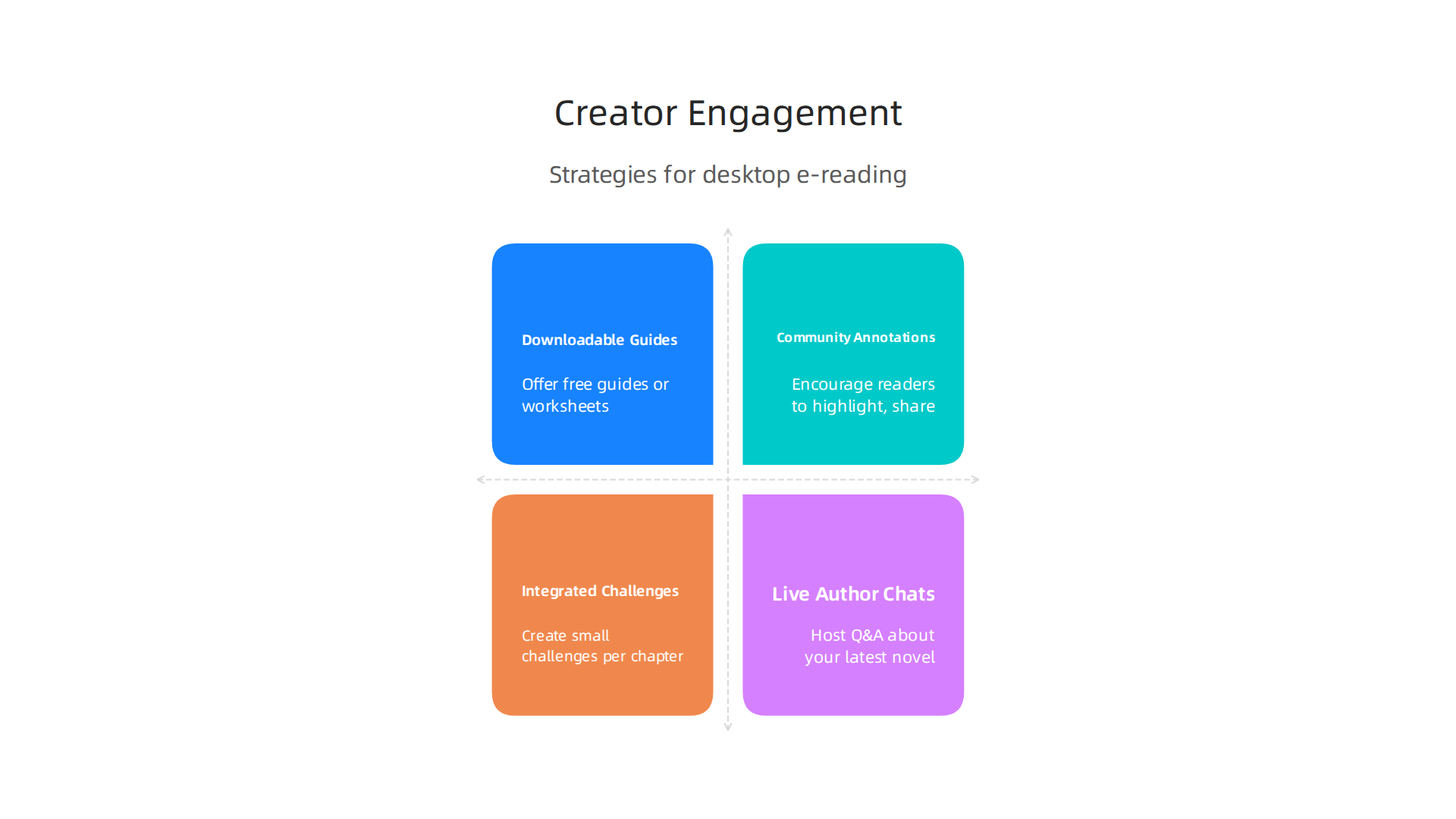
- Downloadable Reading Guides: Offer free guides or worksheets that readers can download and use alongside your book. These could have questions for thinking, space for notes, or fun activities. It’s a low-effort way to add value.
- Community Annotations: Encourage readers to highlight and share their thoughts right within the kindle desktop app. You can then discuss these shared notes in a special online group or during a live chat. This turns reading into a group activity, much like how book clubs offer true connection far beyond endless scrolling.
- Integrated Challenges or Experiments: Create small challenges that go with your book’s chapters. For instance, if you wrote a self-help book, each chapter could have a tiny "experiment" for readers to try in their daily lives. This helps readers take action based on what they read.
- Live Author Chats and Interviews: Use your book as the center of online events. You could host a live Q&A about your latest novel, or even interview other authors about their works. This helps readers feel a personal connection to the creator. Bringing creators together for shared events can lead to a lot of new content and reach New Year, New Author Case Study.
These types of actions help build strong reader engagement and an author platform, which is important for creators today The Art and Business of Reader Engagement + Author Platform. Whether you publish through a big online bookstore or platforms like kobo writing life, using desktop e-reading to create these interactive experiences can make a big difference. It helps your audience become more than just readers; they become part of your story and community.
Ready to connect with a community that’s all about creativity, participation, and new discoveries?
Join The Newsletter to stay updated on new books, experiments, and opportunities to participate. Join The Newsletter
Summary
This article explains why the Kindle desktop app remains a valuable reading and publishing tool in 2026, offering a focused, distraction-free space on your computer for casual reading, deep study, and creative work. It covers system compatibility, how to install and sign in, and how to download and manage books for offline use. You’ll learn how to customize fonts, layouts, and accessibility settings, and how to use highlighting, notes, and export features to turn reading into active learning. The guide also explains Whispersync for seamless cross-device continuity, practical workflows to boost productivity, and concrete ways creators and small brands can use e-books to engage audiences. Finally, it walks through common setup problems and quick fixes so readers can get started without friction.