
Introduction
Do you ever feel the pressure to create photos that stop the scroll? You open your phone, snap a picture, but something feels off. The lighting is flat. The composition is boring. You think about buying expensive editing software, but that sounds complicated and stressful. You already have enough digital noise in your life.
Here’s the thing: you probably already own one of the best photo editor apps available. It’s called Snapseed, and it’s free. No subscriptions, no tutorials required to get started. Just a powerful tool sitting in your phone, waiting to be used.
In 2026, mobile photography is bigger than ever. Smartphones capture over 92% of all photos taken globally, according to mobile photography statistics for 2026. But most people only use the basic filters. Snapseed unlocks pro-level editing without the learning curve.
While the iPhone iMovie app is great for video editing, Snapseed is your perfect companion for still images. You can even think of photo editing as a form of mental health illustration, using color and light to express your emotions.
This guide will walk you through everything you need to know about the photo editor app Snapseed. You’ll learn the essential tools, creative techniques, and how to make photo editing a daily habit that boosts your well-being and creativity. Instead of doom scrolling, you can spend a few minutes transforming your photos into something you’re proud of. For additional support in overcoming creative blocks, you might find these mental health synonyms that build connection and reduce stigma helpful.
If you’re ready to move beyond passive scrolling and start creating, join an experiment that turns creativity into community.
Why Snapseed Remains a Top Photo Editor App in 2026
So you have Snapseed on your phone. But what makes it the best photo editor app Snapseed in 2026? It comes down to three things: it stays free, it keeps getting better, and it lets you edit without fear.
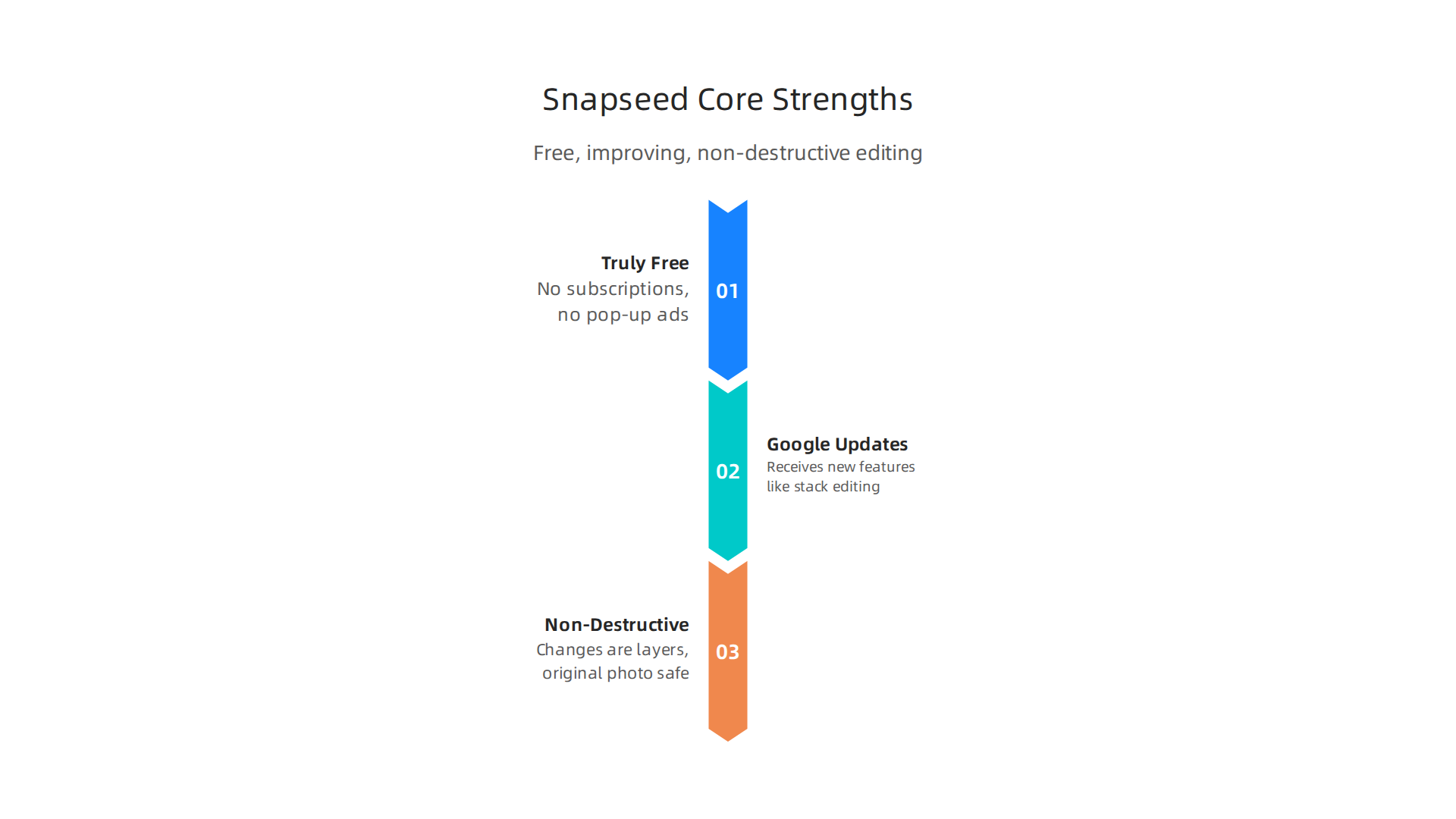
It’s truly free and ad-free. While apps like Adobe Lightroom and VSCo push monthly subscriptions, Snapseed gives you all its editing tools for zero dollars. No trial periods. No pop‑up ads. In a world full of subscription fatigue, a completely free app that doesn’t nag you is rare. This makes it the perfect entry point for anyone who wants to improve their photos without spending money.
Google keeps updating Snapseed. Many people assume a free app stops improving. Not here. In 2026, Snapseed still receives new features. One of the most useful is stack editing. This lets you go back to any edit you made, even after you saved the photo. You can change a filter, adjust brightness, or remove a crop without starting over. Another pro‑level feature is RAW support. If you shoot in RAW format, Snapseed opens those files and gives you full control over exposure, white balance, and detail. These updates keep the app useful for both beginners and professionals.
Editing is non‑destructive. This might be the most important reason. Every change you make sits on top of your original photo like a transparent layer. You can undo, tweak, or delete any edit at any time. Your original image stays safe. That matters a lot for beginners who worry about ruining a photo. And professionals love it because they can try wild ideas knowing they can always go back.
These features help you follow the hottest 2026 photography trends. The return of film grain, authentic imperfection, and analog looks is huge this year. Snapseed makes it easy to add grain, adjust color shifts, and create a vintage mood without buying expensive presets. As the guide to 10 Photography Trends for 2026: What’s Shaping the Future highlights, the analog aesthetic is more popular than ever.
Editing a photo is like telling a story, and Snapseed gives you the tools to arrange the visual story elements every novel needs.
If this inspires you to make photo editing a daily creative habit, join the newsletter to connect with a community of creators who share tips and encouragement.
Getting Started: Essential Snapseed Tools Every Beginner Should Master
Now that you know why the photo editor app Snapseed leads the pack in 2026, let’s get our hands dirty. You don’t need to learn every tool at once. Start with these three, and you’ll be able to fix 90% of your photo problems in minutes.
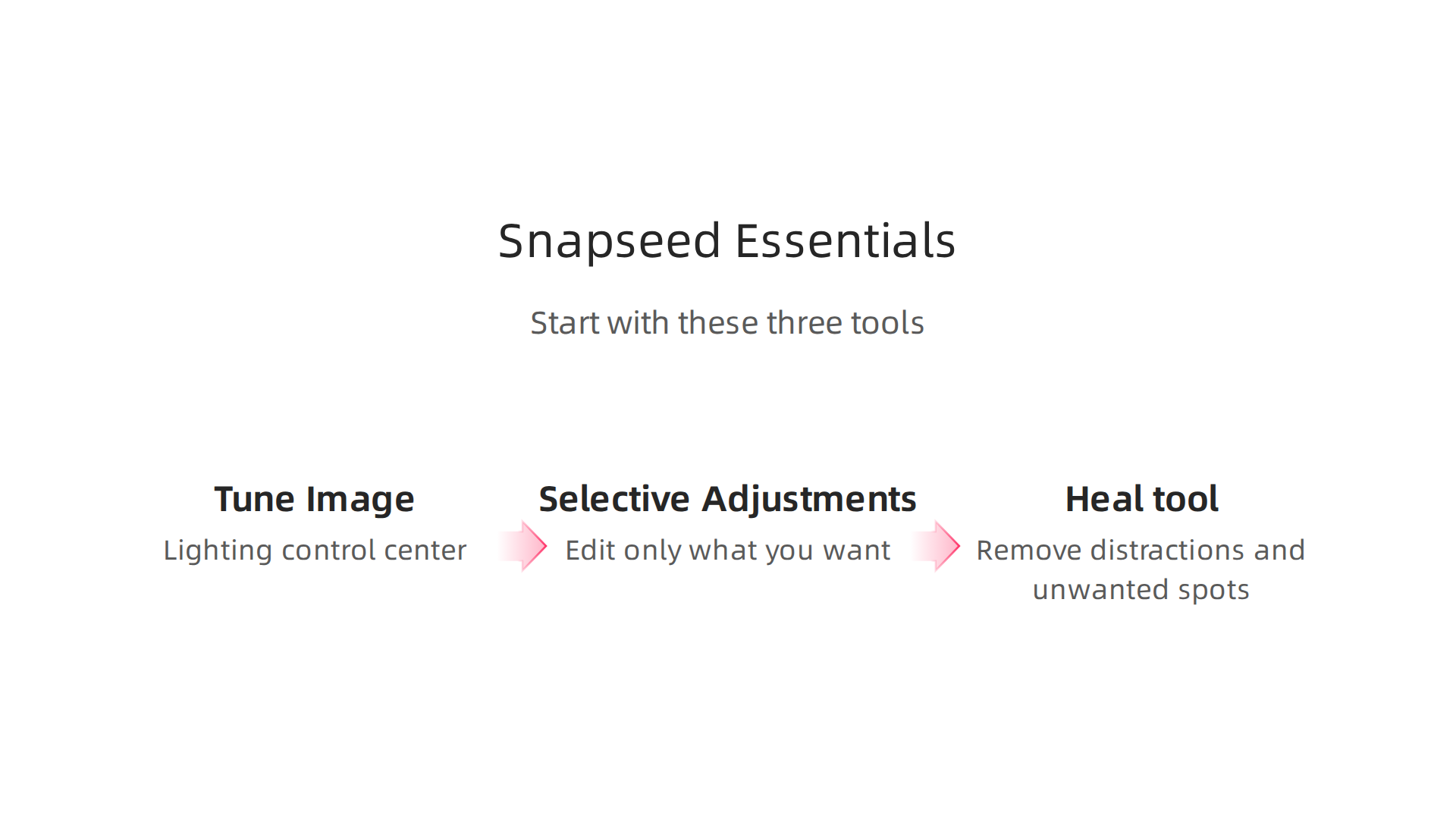
Tune Image – your lighting control center. This is the first tool you should tap every time. It gives you sliders for brightness, contrast, saturation, highlights, shadows, and warmth. Just swipe left or right on the number to adjust. Want to reveal details hidden in a dark shadow? Lift the shadows slider. Need to calm down an overexposed sky? Pull down the highlights. It’s that simple. For a full walkthrough of these basics, check out this step-by-step guide to Snapseed.
Selective Adjustments – edit only what you want. This tool feels like magic. Tap anywhere on your photo, and Snapseed drops a tiny circle called an anchor. Then swipe up or down to choose brightness, contrast, saturation, or structure. Swipe left or right to change the amount. Use two fingers to pinch in or out and control the area the anchor affects. This is how you brighten someone’s face without washing out the background, or make the sky bluer without affecting the mountains.
Heal tool – remove distractions. See a trash can in the corner of your sunset shot? A dust spot on your lens? The Heal tool gets rid of them. Just zoom in and brush over the thing you want gone. Snapseed blends the surrounding pixels to cover it up. It works best on small objects and spots. For larger items, you may need to brush a few times.
Mastering a creative skill like photo editing is similar to building writing confidence: you learn one tool, practice it, then add another. The same step‑by‑step approach works for any new hobby.
Once you feel comfortable with these three tools, why not make photo editing a regular part of your week? It’s a simple, low‑pressure way to create something and feel good about it.

If you’re ready to turn that creative energy into a shared experience, join an experiment and share what you make with others who are also learning and playing.
Advanced Techniques: Double Exposure, Masks, and Curves in Snapseed
Once you’ve mastered the basics, it’s time to level up. The photo editor app Snapseed has some powerful tools that can take your images from good to stunning. These three advanced features will open up a whole new world of creative possibilities.
Double Exposure – blend two images for surreal effects
Double Exposure lets you combine two photos into one. Think of it as a creative sandwich: one image is your base, and the other is layered on top. To start, open your first photo, tap Tools, and select Double Exposure. Then add the second image. You can adjust the blend mode and opacity to control how they mix. Try a sunset layered over a silhouette, or a texture overlay on a portrait. The effect can be dreamy, artistic, or even spooky. Experiment with different modes like Multiply, Screen, or Overlay to see what works best. For a deeper walkthrough of all the blend options, check out the complete guide on using Snapseed tools and sliders.
Use masks with the Brush tool for precision editing
Sometimes you don’t want to edit the whole photo. Maybe you only want to brighten someone’s face or add warmth to a small area. That’s where masks come in. After you apply an effect (like a filter or a curve adjustment), tap the stack icon in the top right corner. Then tap View Edits, select the effect you just applied, and tap the Brush icon. This reveals a mask that lets you paint the effect on or off. Swipe up or down to adjust the brush opacity. Zoom in and carefully paint over the parts you want to change. This is how you make your edits look natural and polished.
Curves – professional color grading made simple
The Curves tool is what the pros use to fine-tune color and contrast. At first glance, it looks like a simple diagonal line on a graph. But it’s incredibly powerful. Tap the middle of the line to add a point. Pull the bottom part down and the top part up to create an S‑curve. This boosts contrast and makes your image pop. You can also adjust individual color channels (Red, Green, Blue) for creative color grading. Want a warm, vintage look? Boost the red channel in the shadows. Want a cool, moody vibe? Add blue to the shadows. There’s no right or wrong here, just play around. A simple S‑curve is a great starting point for adding depth to your photos.
These three tools might feel tricky at first, but practice makes perfect. Try applying one new technique each day. You’ll build confidence fast, just like with any creative skill. If you enjoy learning step by step, you might also like this guide to building writing confidence. It uses the same gradual approach to master a new skill.
Now that you’ve learned the essentials and these advanced tricks, you’re ready to edit like a pro. The only limit is your imagination. So go ahead, open the photo editor app Snapseed, pick a photo, and try blending two images or adding a curves adjustment. You’ll be amazed at what you can create.
Creative Visual Content Ideas to Transform Your Snapseed Workflow
You’ve got the advanced tools down. Now it’s time to put them to work. The best way to get noticed on social media in 2026 is to create content that stands out. According to the latest top social media trends, audiences want authentic, visually interesting posts. Here are three creative ideas you can make right inside the photo editor app Snapseed.
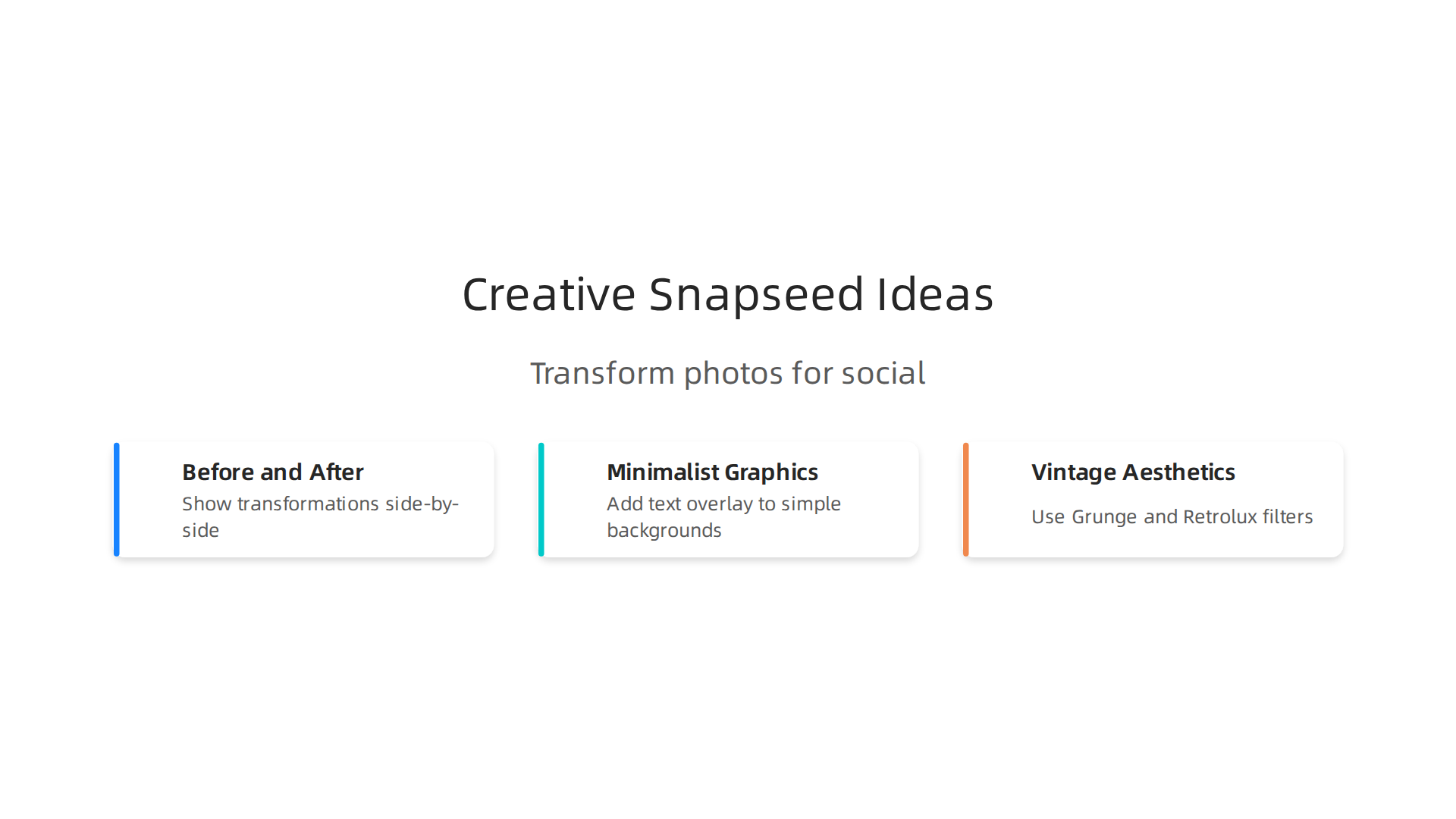
Idea 1: Before and after transformations
People love seeing the magic happen. A side-by-side before and after image shows your editing skills instantly. Shoot a raw photo first. Then edit it using the Curves tool, a warm filter, and some selective masking. Combine both images using Double Exposure or just put them next to each other in a collage. This works great for landscape shots, portraits, or even food photos. It teaches your audience what’s possible with the right tools.
Idea 2: Minimalist social media graphics with text overlay
You don’t need a separate design app. Snapseed’s Text tool lets you add clean typography right over your photos. Start with a simple background image like a sunset or a blurred texture. Add a short quote or a title. Use the Frames tool to give it a border. Keep it simple: one or two words in a bold font. This style is perfect for Instagram stories, Pinterest pins, or LinkedIn posts. If you shoot video too, the imovie iphone app is a great companion for creating short clips with matching graphics.

Idea 3: Vintage aesthetics with Grunge and Retrolux filters
Vintage looks are huge right now. Snapseed has two filters that make it easy: Grunge and Retrolux. The Grunge filter adds rough textures and faded colors for an edgy feel. Retrolux gives you light leaks, film grain, and those warm or cool tones you see in old analog photos. Try applying Retrolux with a slight vignette from the Vignette tool. Then use the Brush tool to mask the effect away from the subject’s face so they stay sharp. This creates a trendy, nostalgic vibe that draws the eye.
These ideas turn a single photo into engaging social content. They help you move from passive scrolling to active creation. Ready to try one? Join an experiment where you can share your creations, get feedback, and connect with others. Click that CTA to become part of a community that values creativity and action.
Snapseed vs. Other Mobile Photo Editors: A Feature Comparison
You’ve seen how Snapseed can turn a simple photo into something special. But with so many mobile editors out there, you might wonder if it’s really the best choice for your workflow. In 2026, creating content that matches the latest top social media trends matters more than ever. Let’s put Snapseed side by side with three other popular apps: Adobe Lightroom, VSCO, and PicsArt.
| Feature | Snapseed | Lightroom | VSCO | PicsArt |
|---|---|---|---|---|
| Price | Free | Free (basic) + subscription | Free + membership | Free + subscription |
| Non-destructive editing | Yes | Yes | Yes | No (destructive) |
| Selective adjustments | Excellent (Brush, Selective) | Good (masking) | Limited | Basic |
| Presets/ filters | Good (looks + custom) | Excellent (huge library) | Very good (film-inspired) | Good (many effects) |
| Cloud storage | No | Yes (Adobe Cloud) | Yes | No |
| Ease of use | Very easy | Moderate | Easy | Moderate |
Snapseed stands out in two big ways. First, non-destructive editing means you can go back and tweak any adjustment without losing your original photo. That’s huge for experimenting. Second, its selective adjustment tools (like the Brush and Selective tool) give you pinpoint control over brightness, contrast, and saturation in just one area of the image. You won’t find that level of precision in VSCO or PicsArt without extra work.
What Snapseed lacks is cloud storage and a deep library of advanced presets. Lightroom wins on those fronts. But here’s the trade-off: Snapseed is completely free. No subscription, no hidden costs. That makes it a perfect starting point for anyone learning to edit or building a regular posting habit.
If you plan to build a series of visual stories, combining great editing with story elements can make your content more engaging. Snapseed gives you the tools to polish each photo with care. And when you’re ready to go further, the next step is finding a community that supports your creative growth.
Join The Newsletter to get more tips, experiment ideas, and a direct line to fellow creators who take action.
Expert Tips to Maximize Your Snapseed Workflow
You already know Snapseed is a powerful tool. But knowing the features is only half the battle. The real magic comes from a smart workflow that saves time and builds your skills. Here are three expert tips to help you get the most out of this photo editor app Snapseed in 2026.
Save Custom ‘Looks’ for Batch Consistency
If you post to social media or work on a creative project, keeping a consistent look across your photos matters. After you finish editing a photo you love, tap the ‘Looks’ icon. Scroll to the bottom, hit ‘Add a Look’, and give it a name. Now you can apply that exact edit to any other photo with one tap.
This saves you from repeating the same adjustments over and over. As the 2026 Snapseed review points out, it helps you maintain a consistent editing style without a complex system. You can even combine your polished photos into a video diary using the iMovie iPhone app for an extra layer of storytelling.
Master the ‘Stack’ System for Fearless Editing
Snapseed saves every adjustment as a layer in the ‘Stack’. You can find it by tapping the number in the top right corner and choosing ‘View Edits’. This lets you go back to any step and tweak or delete it.
Tried adjusting the curve but the shadows got too dark? Jump back to that exact step and fix it. This freedom to experiment without ruining your original photo is a huge confidence booster. It supports better creative confidence by removing the fear of making a mistake.
Build a Photo-a-Day Habit
The best way to get faster is to practice a little every day. Take one photo, edit it in under a minute using your custom Looks or quick Tune Image adjustments, and share it. This builds muscle memory and trains your eye for light and color.
This small daily act also gives you a win every day. It shifts your focus from stress to making something. It is a gentle form of mental health illustration that helps you process your day visually.
Ready to turn this habit into a shared adventure? You can Join An Experiment that turns small daily actions into creative recognition and connection with others. It is a simple, fun way to stay consistent.
Overcoming Creative Blocks with Daily Snapseed Editing
Creative block can feel like a wall in your mind. You stare at a blank page or an empty photo roll and nothing comes. Here is the thing: you do not need a big project to break through. A small, low-pressure act can do the trick.

Editing a single photo each day is one of the simplest ways to get unstuck. You open the photo editor app Snapseed, pick any random image from your camera roll, and make one tweak. Maybe you adjust the brightness or add a subtle curve. That small win takes about 30 seconds, but it sends a signal to your brain that says, "I can create something." This feeling reduces anxiety because you prove to yourself that you are capable of making a choice and finishing a task.
The Photzy guide to Snapseed calls it "the perfect tool for the reluctant post-processor."
It explains that you only need four quick edits to transform a picture. That is a tiny commitment. You do not have to be a pro. You just have to start.
Setting a simple "edit one photo per day" challenge builds real confidence. When you repeat this habit, perfectionism starts to fade. You learn that done is better than perfect. Each day you get a little faster and a little braver. Over time, that daily practice turns into a steady creative muscle. You can even use the Stack system we talked about earlier to see your progress and learn from past edits. This growing sense of skill supports your creative confidence in the same way that practicing writing every day builds writing confidence. If you want to strengthen that skill in another medium, a guide on building writing confidence offers similar principles for showing up daily.
Sharing your daily edits in a supportive community takes the practice even further. It combats loneliness because you are not editing in a vacuum. Someone else sees your work, gives a simple compliment, or shares a suggestion. That connection sparks new ideas and keeps you going. You move from "I am stuck" to "I am part of something."
Ready to turn this creative habit into a shared adventure with others who love curiosity and action? You can explore The Ridiculous book series, a funny and thoughtful sci-fi comedy that flips boredom into laughter and participation. It is a perfect companion for anyone who wants to fuel their creative spark beyond the screen.
Building a Community Around Your Snapseed Creations
Editing alone is useful. Editing with others changes everything. When you share what you create with the photo editor app Snapseed, you turn a private habit into a shared experience.
And that shift matters more than you might think.
Start by posting your daily edits on a platform like Instagram. You do not need a big following. Just put one image out there with a short note about what you adjusted. A simple caption like "Played with Snapseed curves today" invites curiosity. Other people who use the same app will notice. They might ask how you got that look or share their own version. That exchange is where real connection starts.
The trick is to engage in the comments. Answer questions. Thank people for their feedback. Ask them what tool they use most. These small back-and-forth moments build relationships. In 2026, the social media marketing strategies that actually work are the ones focused on genuine interaction over reach. When you show up as a real person, people remember you. They look forward to your next post.
You can also join monthly photo challenges. Many photography communities run themed contests where everyone edits a picture around one topic. The SPC Smartphone Photography Competition is a great place to start. It is open to mobile photographers of all skill levels. Entering a challenge gives you a deadline, a focus, and a reason to try something new. You also get feedback from other participants. That feedback helps you grow faster than editing alone ever could.
Consistency makes all the difference here. According to a guide on starting a photography business in 2026, consistent marketing and relationship building are what turn a casual hobbyist into someone people know and trust. Post once a week. Comment on three other people’s posts. Over time you become a familiar face in the community.
This circle of creative friends does more than improve your editing skills. It fights the loneliness that often comes with solitary creative work. You are not just staring at your phone making tiny adjustments. You are part of a network that sees you, values your work, and cheers you on.
The same principle of building confidence through daily practice applies across different creative hobbies. If you want to strengthen that muscle through writing, a guide on building writing confidence offers similar strategies for showing up and connecting with others.
This growing sense of belonging keeps you coming back. And that is exactly what turns a simple editing habit into a lasting creative practice. If you want to keep fueling that spark and stay connected with a community built on participation and laughter, Join The Newsletter.
Summary
This guide explains why Snapseed remains one of the best photo editor apps in 2026, highlighting its free, ad‑free model, non‑destructive editing, and ongoing Google updates like stack editing and RAW support. It walks beginners through three essential tools—Tune Image, Selective Adjustments, and the Heal tool—then moves into advanced techniques such as Double Exposure, Masks, and Curves for professional color grading. The article gives practical content ideas (before/after posts, minimalist graphics, vintage looks), compares Snapseed to Lightroom, VSCO, and PicsArt, and shares expert workflow tips like saving custom Looks and using the Stack to experiment without fear. It emphasizes small daily habits—edit one photo a day—to build skill and creative confidence, and recommends sharing work to form a supportive community that accelerates growth. Readers will learn specific steps and workflows they can apply immediately to improve photos, develop a consistent visual style, and stay motivated by connecting with others.